



Your Google Ads tag sees one moment: the form fill, the sign-up, the first order. Everything that happens after it, the qualified lead, the signed contract, the approved application, the second and third order, happens in your back end or CRM, where Google Ads can’t see it.
Offline conversion import closes that gap. You store the click ID from the ad click with the lead, your system lists the later events in a file, and Google Ads fetches the file every day and matches each row back to the click that started it. From then on, the campaigns can bid for the clicks that bring customers, not for the clicks that bring form fills.
This guide shows how to set it up the way we brief it to our clients’ developers: what to capture, what goes in the file, how Google Ads picks it up, and how to test it.
TL;DR
- Offline conversion import sends events from your back end to Google Ads, matched to the ad click by the GCLID (or gbraid / wbraid on iOS).
- Enhanced conversions for leads is the same import with extra columns: the customer’s email and phone, normalised and hashed. They match the rows whose click ID got lost. Send both whenever you can.
- The simplest setup: one CSV file, regenerated every night, served over HTTPS with a password, fetched daily by Google Ads Data Manager. No API project needed.
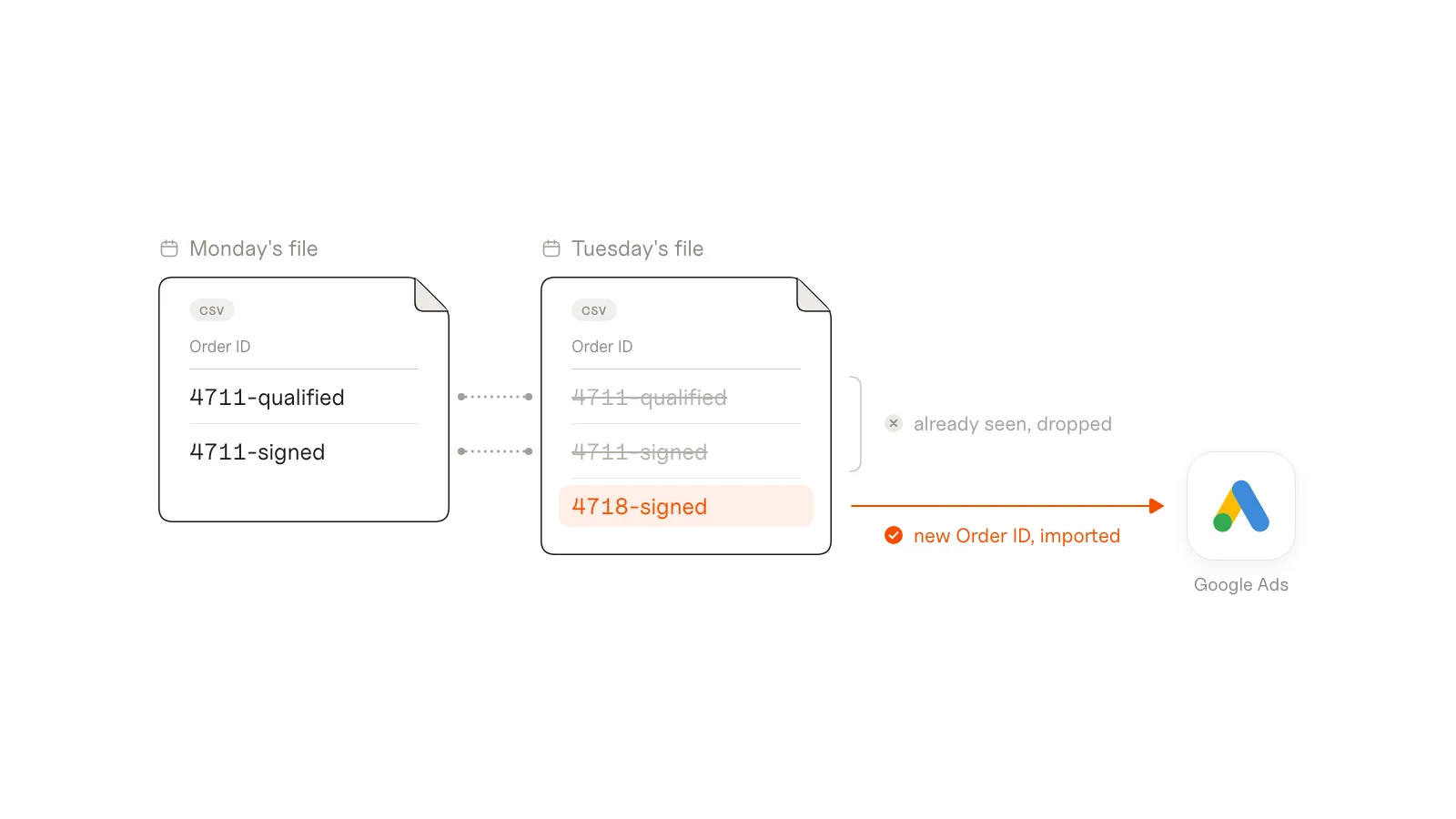
- One row per event, never edited. A unique Order ID per row lets Google drop the rows it already has, so the file can overlap safely.
- Windows: clicks up to 90 days old for click-ID matches, 63 days when the match relies on hashed data.
- Since 15 June 2026, API uploads go through the Data Manager API. The UI routes (Data Manager connectors, scheduled files) work as before.
- Start the new conversion actions as secondary, compare them with your tag for 2–4 weeks, then decide what bidding should use.
When the tag isn’t enough
If the conversion you care about happens on the website, at the moment of the click’s visit, the tag is enough. You need an import when the value shows up later or somewhere else:
- Lead generation with a sales or approval step: a lead is only worth something once it’s qualified, signs, or gets approved.
- Apps and portals: someone signs up on the website, then activates, verifies or pays inside the product.
- Repeat business: the first order is small, and the real value comes from reorders, often placed by phone, WhatsApp, a sales rep or from another device.
- Refunds and cancellations: the tag counts the order; only your back end knows it was paid and kept.
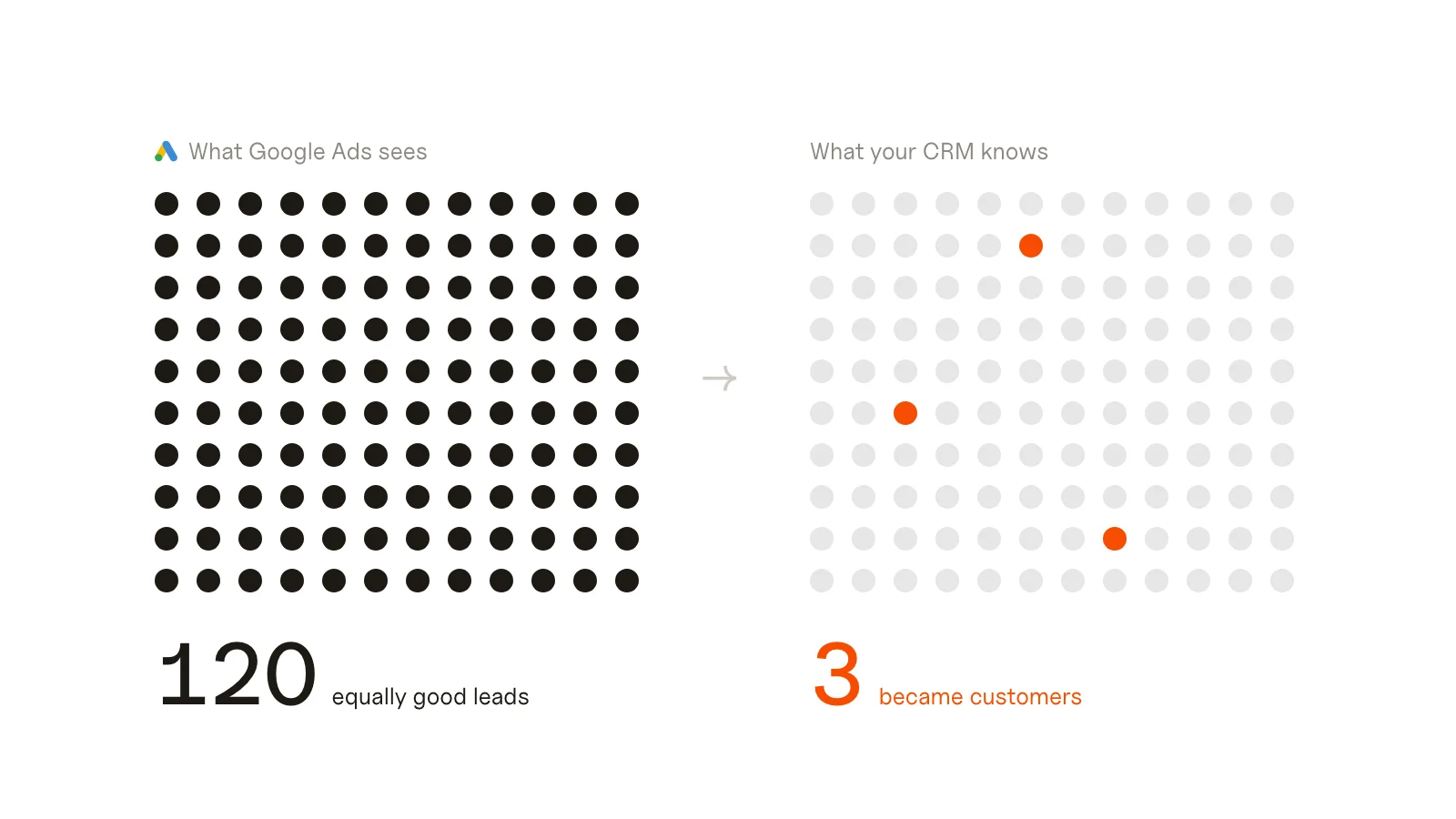
In each case, a tag-only account teaches Google to find more of the first event. If 120 leads produce 3 customers, Google treats all 120 as equally good.
How it works
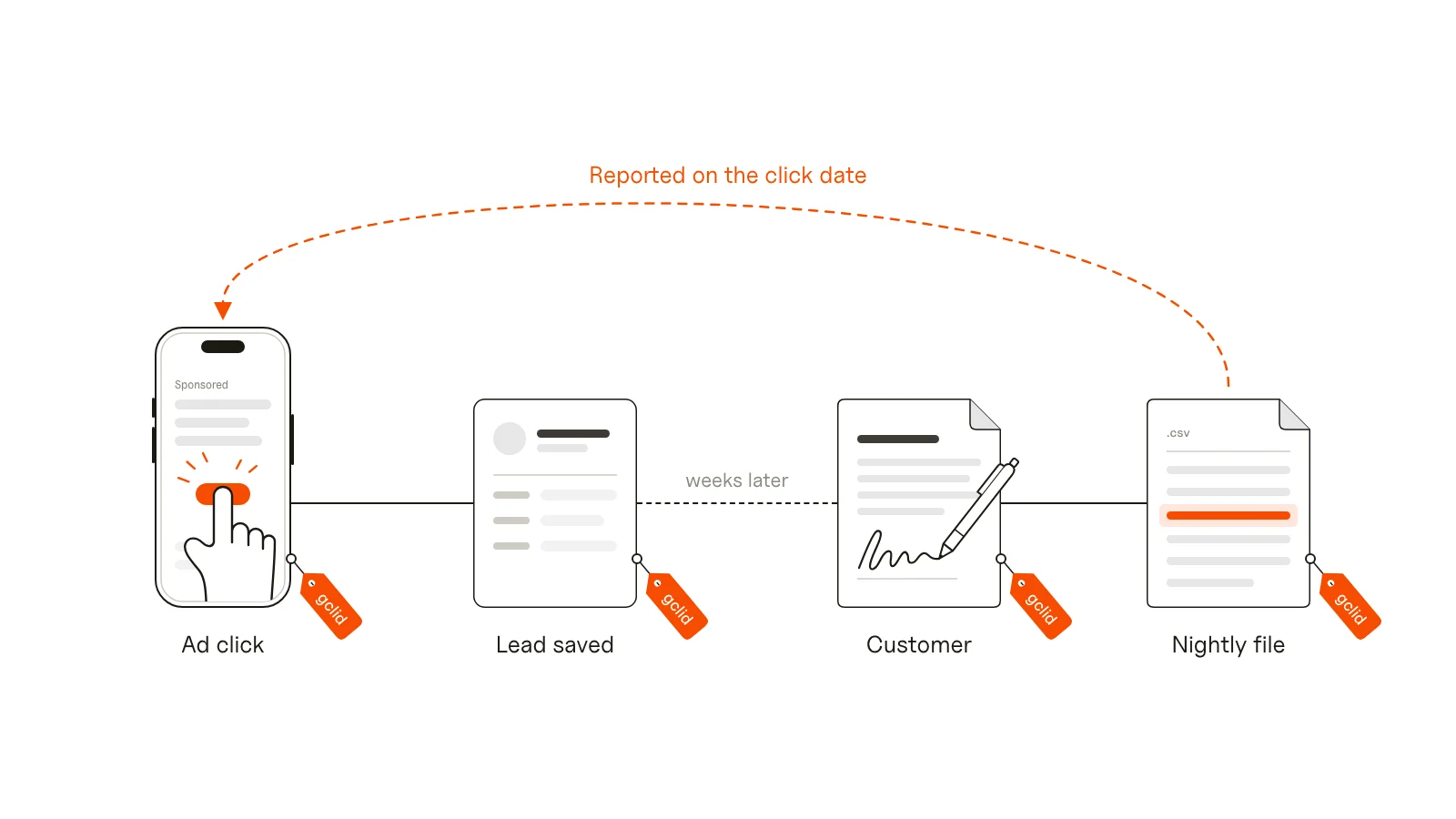
- At the ad click, Google adds a click ID to the landing page URL:
gclidon most clicks,gbraidorwbraidon some iOS traffic (more in our GCLID glossary entry and the gBraid guide). - Your website stores it with the lead or customer, together with the time of the click.
- When something valuable happens later, your back end writes a row: click ID, event name, time, value, a unique ID, and (for enhanced conversions for leads) the hashed email and phone.
- Every night, the file is regenerated at a fixed URL.
- Every day, Google Ads fetches the file, drops rows it has already seen, and matches the rest to the original clicks. The conversion is reported on the date of the click, not the upload date.
Nothing changes for the customer. The work is a few fields in your database, one export, and a one-time setup in Google Ads.
Order of work
If you’re briefing a developer, this is the order we use. It puts the time-critical part first:
- Capture the click IDs (step 1). Only leads captured from now on can ever be matched, so this starts first.
- Define the events and values (step 2).
- Build the file (step 3).
- Set up the import in Google Ads (step 4).
- Test it end to end (step 5), then roll out (step 6).
Step 1: capture the click ID (and keep it)
Save these on the lead or customer record when someone arrives from an ad. Keep the first touch and don’t overwrite it on later visits:
| Field | Source |
|---|---|
gclid, gbraid, wbraid | URL parameters from the Google ad click |
utm_source, utm_medium, utm_campaign, utm_content, utm_term | URL parameters (for your own reporting) |
landing_page, landed_at | first page URL and the time of that visit (= the click time) |
ad_user_data_consent | the visitor’s cookie-banner choice for advertising, if you operate in the EEA, UK or Switzerland |
How to get them there:
- A first-party cookie set on the landing page (90 days is a sensible lifetime) that holds the click ID and UTMs, read again when the form is submitted. This survives the visitor browsing a few pages before converting.
- Hidden form fields filled from that cookie, so the values arrive in the CRM with the lead.
- For shops and accounts: store the click ID on the order (this visit came from an ad) and on the customer (their first visit came from an ad). A repeat order placed months later without an ad click can still be traced back to the click that won the customer, as long as it’s within the window.
Test it before anything else: open your site with ?gclid=TEST_OFFLINE_1 in the URL, submit a lead, and check that TEST_OFFLINE_1 arrives in the CRM or database. A literal [gclid] or an empty field means the capture is broken.
Auto-tagging has to be on in Google Ads, or there’s no GCLID to capture.
Before you build the import, check that the IDs actually reach your landing pages: our free GCLID checker follows every redirect with test gclid, gbraid and wbraid values and shows where they get lost.
Step 2: define the events
Pick the moments Google should learn from, and give each one a stable name. One row per event, and never edit a row once it’s in the file.
| Event | When | Value | Order ID (unique, never changes) |
|---|---|---|---|
lead_qualified | sales marks the lead as qualified | none | {lead_id}-qualified |
customer_signed | contract or application signed | expected revenue, excl. VAT | {lead_id}-signed |
order_paid | order paid (shops) | net order value, excl. VAT and shipping | {order_number} |
Rules that save you a rebuild later:
- The Order ID is the deduplication key. Google ignores a row whose Order ID it has already seen. It does not update the value. So if a customer’s value grows, add a new row (for example one per signed contract or per order) instead of editing the old one.
- Values should be what the event is worth to you: net revenue, margin, or an expected value. Leave the value empty for steps that aren’t worth money on their own.
- Leave out zero-value “wins”. A signed contract worth 0€ still counts as a conversion and tells bidding it was a success.
- Cap extreme values if one outlier can distort bidding (an unusually large first order, an inflated estimate).
Step 3: build the file
One CSV file, served over HTTPS, protected with HTTP basic auth (username and password). Regenerate it every night, before Google fetches it.
Which rows go in:
- Events from the last 14 days. The overlap with yesterday’s file is fine, because Google drops duplicates by Order ID, and a failed night costs nothing.
- Only real events: paid orders, actually signed contracts, no test records.
- A click ID or, for enhanced conversions for leads, a hashed email or phone.
- For click-ID rows: the click (
landed_at) is before the event and no more than 90 days earlier. Google rejects older clicks. Rows that rely on hashed data alone need the click within 63 days.
The format:
Google Click ID,GBRAID,WBRAID,Email,Phone Number,Conversion Name,Conversion Time,Conversion Value,Conversion Currency,Order ID
Cj0KCQjw...,,,9f86d081884c7d65...,a665a45920422f9d...,customer_signed,2026-11-03T14:22:05+01:00,900.00,EUR,4711-signed
,,,3c9909afec25354d...,,customer_signed,2026-11-04T10:05:33+01:00,650.00,EUR,4718-signed
Cj0KCQjw...,,,9f86d081884c7d65...,,lead_qualified,2026-11-02T09:10:44+01:00,,EUR,4711-qualified| Column | Value |
|---|---|
| Google Click ID / GBRAID / WBRAID | exactly one of the three per row, or none if the row matches on hashed data only |
lowercased, trimmed, then SHA-256 (for Gmail addresses, also remove dots and anything after a + before the @) | |
| Phone Number | international format (+34600000000), then SHA-256 |
| Conversion Name | the event name, exactly as the conversion action is called in Google Ads |
| Conversion Time | the event time with a time-zone offset, e.g. 2026-11-03T14:22:05+01:00 (the classic upload template uses 2026-11-03 14:22:05+01:00) |
| Conversion Value | two decimals, dot as decimal separator; empty for events without a value |
| Conversion Currency | ISO code, e.g. EUR |
| Order ID | the unique ID from step 2 |
Enhanced conversions for leads is just the Email and Phone Number columns. A row with a GCLID matches on the GCLID. A row whose GCLID got lost (Safari, a redirect that stripped the URL, a lead that came back through another channel) can still match on the hashed email or phone. Google’s own advice is to send both whenever you have them; it reports a median 10% more conversions for advertisers who add first-party data to their GCLID uploads.
Two conditions for the hashed columns:
- Consent: only fill them when the person agreed to advertising use of their data (
ad_user_data_consent= yes). Otherwise leave them empty and rely on the click ID. - The form side: rows without any click ID only match if your website tag also sends hashed user data at the form (enhanced conversions for web). That’s a separate setup with its own pitfalls; we cover it in a separate guide.
Keep the header names fixed once the file is live. Google Ads maps the columns once when you connect the file.
Step 4: set up the import in Google Ads
Create the conversion actions
In Google Ads: Goals → Conversions → New conversion action → Import → Other data sources or CRMs → Track conversions from clicks. Create one action per event name in the file:
| Setting | Recommendation |
|---|---|
| Name | exactly the Conversion Name in the file |
| Category | Qualified lead, Converted lead or Purchase |
| Value | ”Use different values” (from the file) for events with a value; “Don’t use a value” for the others |
| Count | ”One” for lead stages; “Every” for orders or repeated contracts |
| Click-through window | 90 days |
| Attribution | data-driven |
| Goal | secondary at the start (see step 6) |
Wait a few hours after creating an action before the first upload; brand-new actions reject conversions for up to about six hours.
Turn on enhanced conversions for leads
Under Goals → Settings, accept the customer data terms and turn on enhanced conversions. Since 2026 it’s a single account-level switch that covers your tags, Data Manager and API uploads.
Schedule the daily import
In Tools → Data Manager → Connected products → + Connect, choose HTTPS (or Google Sheets, BigQuery, Salesforce, HubSpot if your data already lives there):
- URL: your file; authentication: basic, with the username and password.
- Data type: offline click conversions. If your file also carries hashed email and phone, choose the enhanced conversions for leads option instead; a plain click import treats the GCLID as required, so rows with only hashed data would be rejected.
- Map the columns: click IDs, Email, Phone Number, Conversion Name, Time, Value, Currency, Order ID.
- Fallback time zone: your business time zone, used for any row without an offset.
- Schedule: daily, an hour after your nightly refresh.
If your import screen only lets you pick one conversion action per connection, add a filter to the same URL (?event=customer_signed) and create one connection per event.
If you’d rather use an API: since 15 June 2026, offline conversion and enhanced-conversions-for-leads uploads go through the Data Manager API; the old Google Ads API upload method is closed to new integrations. For most businesses, the scheduled file is simpler and needs no developer token.
Step 5: test it end to end
- The URL returns the file with the username and password, and refuses access (401) without them.
- Open the site with
?gclid=TEST_OFFLINE_1, submit a lead (or place an order), and push it through to the event: qualify it, sign a test contract, mark the order paid. - The next file shows the row with
TEST_OFFLINE_1, the right event name, time with offset, value and Order ID. - A second event for the same test lead (a second order, a second contract) shows up as a new row; the first row is unchanged.
- Old events, unpaid orders and test records you meant to exclude are not in the file.
- In Google Ads, the first scheduled run shows as processed. Test click IDs will be reported as “unknown click” or “click not found”: that’s expected, because they never came from a real ad.
Then delete or flag the test records so they drop out.
Step 6: roll out without confusing bidding
- Weeks 1–4: secondary. The new actions report, but bidding still uses your existing goal. Compare the numbers with your tag: does the import find the conversions the tag finds, plus the ones it misses (phone orders, repeat orders, other devices)?
- Don’t count the same outcome twice. If the import and the tag both report the same order, only one of them can be primary.
- Bid on the deep event only when there’s volume. Smart Bidding needs a steady flow of conversions per campaign. A practical ladder: keep the form fill as the primary goal; add the first qualified stage as a primary signal once it reaches roughly 15–30 a month; move to value-based bidding on the final event at roughly 30+ a month.
- Upload daily. A short, regular lag is fine for Smart Bidding; a monthly batch isn’t, because bidding learns from conversions weeks after the clicks it’s adjusting.
Two examples
Example A: a consumer app with a sign-up on the website and the value inside the product. The tag counted 120 leads a month. The back end showed what happened next: 60 activated their account, 11 completed verification, 3 became paying customers worth about 900€ each. Three events went into the file (account_activated, verification_completed without value, customer_paid with value), all secondary at first. The journeys were faster than expected: several leads went from ad click to payment within a few hours, so the 90-day window was never the issue. The first file also contained a paid event worth 0€, a free trial that converted to a plan with no charge yet. It counted as a conversion, so it was moved out of the bidding file and kept for reporting.
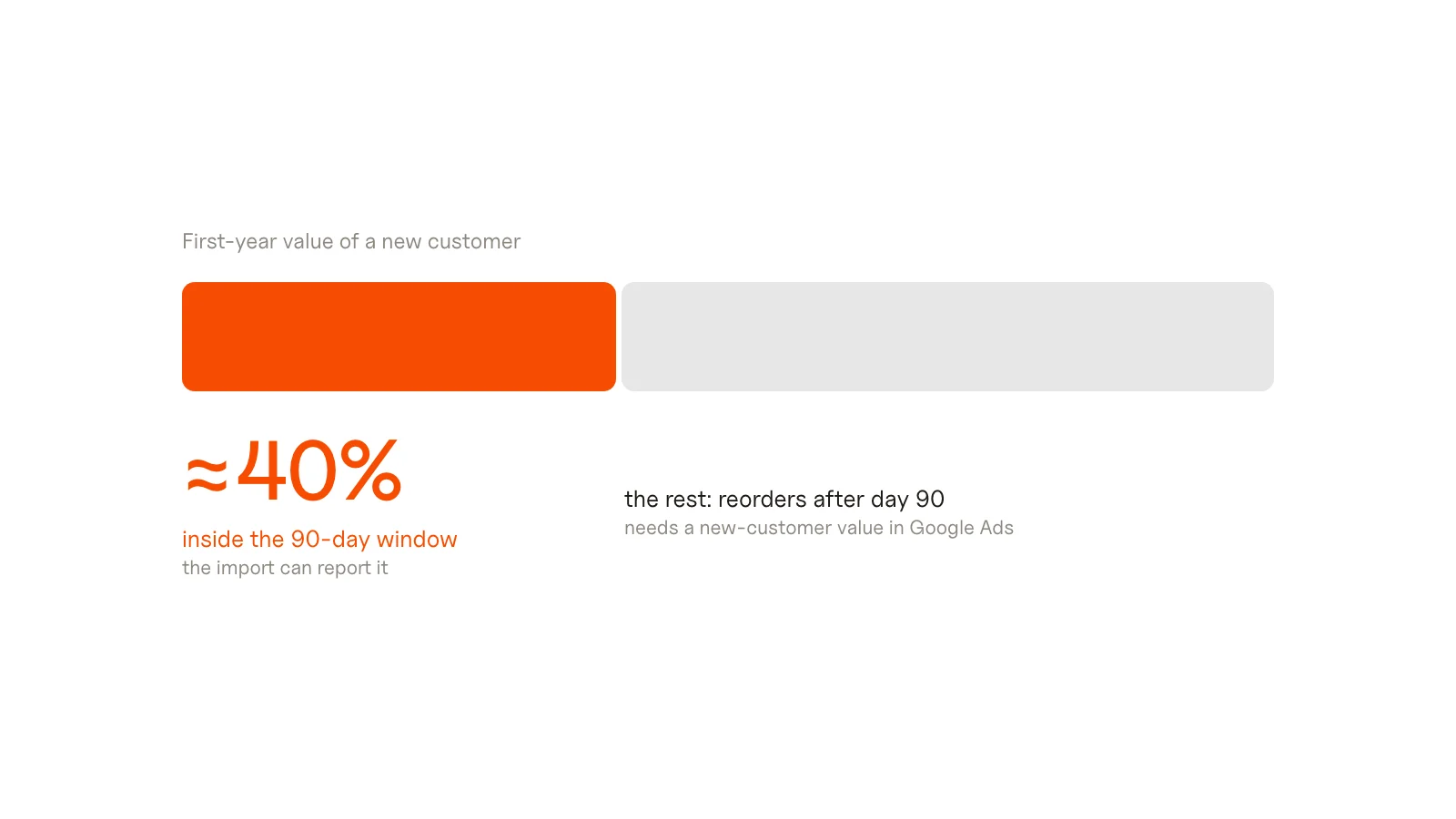
Example B: an online shop where most revenue comes from reorders. Around 85% of revenue came from repeat orders, and only about 40% of a new customer’s first-year value fell inside Google’s 90-day window. The import took paid orders from every channel (website, phone, sales reps), used the order’s click ID first and the customer’s first-visit click ID second, and sent net values without VAT or shipping. In the first weeks, 3 of 10 ad orders arrived without any click ID, so the hashed email column was added. The import also needed one fix: on a day with no qualifying orders, the file contained only the header, and the scheduled run failed instead of importing zero rows. Because only 40% of the value falls inside the window, the import was paired with a new-customer value in Google Ads to express the rest.
The examples are anonymised composites based on real client projects. Names and figures are changed.
Troubleshooting
| What you see | Likely cause | Fix |
|---|---|---|
| Unknown clicks / click not found | test IDs, or click IDs from another Google Ads account | expected for tests; for real rows check the IDs come from this account’s ads |
| Unparseable GCLID | the value was cut, URL-encoded twice, or is a literal [gclid] placeholder | store the raw parameter value; check the capture with a test click |
| Click too old / identifiers too old | click more than 90 days before the event (63 for hashed-only rows) | filter older rows out of the file; for long cycles, import an earlier stage |
| Conversion precedes click | event time before the click time, often a time-zone error | send times with an offset; set the fallback time zone |
| Click too recent / conversion action too new | uploaded within hours of creating the action | wait about six hours after creating an action |
| Conversion action not found | the name in the file differs from the action name | copy the name exactly, including case and spaces |
| Rows processed, nothing reported | duplicate Order IDs from an earlier upload, or rows outside the window | check the Order IDs and the date filter |
| Scheduled run fails on a quiet day | a header-only file | check the run history; make sure an empty file doesn’t break the schedule |
| Low match rate on hashed rows | normalisation (uppercase, spaces, phone without country code) or no consent | normalise before hashing; check the consent filter |
Google Ads shows per-action diagnostics: rows processed, match rate, and the errors above. Check them after the first run and again a week later.
Checklist
- Auto-tagging on in Google Ads
gclid/gbraid/wbraid, UTMs, landing page and click time stored on the lead and customer, first touch only- Consent for advertising use stored per person (EEA, UK, Switzerland)
- Events named, one row per event, unique Order ID
- Values net, zero-value wins excluded, outliers capped
- Nightly CSV over HTTPS with basic auth, rolling 14 days
- Hashed email and phone added for consented rows
- Conversion actions named exactly like the file, secondary
- Enhanced conversions turned on, customer data terms accepted
- Data Manager schedule daily, fallback time zone set
- End-to-end test with a test GCLID passed
- Diagnostics checked after the first run and after a week
FAQ
Is GCLID-based offline conversion import still supported?
Yes. Since June 2026, API uploads moved to the Data Manager API, and Google recommends adding hashed customer data (enhanced conversions for leads) to the same uploads. File and connector imports through Data Manager work as before, and Google still asks you to include the GCLID whenever you have it.
What’s the difference between offline conversion import and enhanced conversions for leads?
It’s one import. Offline conversion import matches each row by its click ID. Enhanced conversions for leads adds hashed email and phone columns, so rows whose click ID got lost can still be matched. Send both.
How long is a GCLID valid for conversion imports?
Google accepts conversions up to 90 days after the click for click-ID matches, and 63 days when the match relies on hashed customer data. Set the click-through window of the conversion action to match.
How do I test a GCLID?
Open your site with ?gclid=TEST_OFFLINE_1 in the URL, submit a lead, and check the value arrives in your CRM or database and later in the export file. Google Ads will report the test row as an unknown click, which confirms the file was processed.
How often should I upload offline conversions?
Daily. Google Ads fetches a scheduled file once a day; a rolling 14-day file with unique Order IDs means a missed day costs nothing.
Can I update a conversion value after uploading it?
Not by uploading the same Order ID again: Google ignores it. Add a new row for the additional value (a new order, a new contract), or use a separate adjustment upload for retractions and restatements.
Key takeaways
- Capture the click ID first; only leads captured from today can ever be matched.
- One row per event, a unique Order ID, never edited; a rolling 14-day file.
- Enhanced conversions for leads is two extra columns: hashed email and phone, consented rows only.
- Data Manager fetches the file daily; no API project needed.
- Start secondary, compare for 2–4 weeks, then let bidding use the event that has enough volume.
Offline conversion import touches the website, the back end and the Google Ads account at once, which is why it often stalls halfway. Our tracking setup and audit covers the whole chain, from the click to the daily import.
Sources: Google Ads Help: About offline conversion imports, Google Ads Help: Import conversions from clicks, Google Ads Help: About enhanced conversions for leads, Google Ads Help: single enhanced conversions setting, Google Ads Data Manager Help, Google Ads Help: Conversion diagnostics, Google Ads API: legacy offline conversion import, Data Manager API: offline conversions